
:: Subscribe to our newsletter
 
Articles / Directory
02/10/2012
Latest version of TraderCode(v5.5) includes new Technical Analysis indicators, Point-and-Figure Charting and Strategy Backtesting.


01/04/2011
InvestmentCode, a comprehensive suite of
Financial calculators and models for Excel is now available.


09/01/2009
Launch of
Free Investment and Financial Calculator for Excel.


01/02/2009
Launch of NeuralCode(v1.0) for
Neural Networks Trading.


08/06/2008
Launch of ConnectCode Excel Training Courses. Get this
Free Excel Training (over 100 pages) now.


06/17/2008
ConnectCode Number Manager - add-in that enhances your productivity when working with numbers in Excel.


06/3/2008
ConnectCode Barcode Font Pack - enables barcodes in office applications and includes an add-in for Excel that supports mass generation of barcodes.


02/1/2008
Release of
SparkCode Professional - add-in for creating Dashboards in Excel with sparklines


12/15/2007
Announcing
ConnectCode Duplicate Remover - a powerful add-in for finding and removing duplicates entries in Excel


09/08/2007
Launch of
TinyGraphs - open source add-in for creating sparklines and tiny charts in Excel.


Training NeuralCode with Stock information with Charts displaying the progress

You can also see the underlying training being carried out by configuring NeuralCode to display a Chart to show the progress.
  • Launch the Show Training in a Chart Worksheet

  • Click on "NeuralCode" to launch the training and prediction dialog. Click on the "Input Range" text box. Select cells A2 to D11. Make sure you see 'Predict Stock Prices'!$A$2:$D$11 in the text box.

  • Click on the "Target Column" text box. Select column "F" in the text box. We are training the networks with Tomorrow's Closing price to give it the ability to predict future prices with historical information. Click on the Options button. We are going set up to display the training progress in a Chart. In "Show Training Progress in a Chart", select "Yes". Choose column "H" as the working column. NeuralCode will dump out the training output to this column periodically.
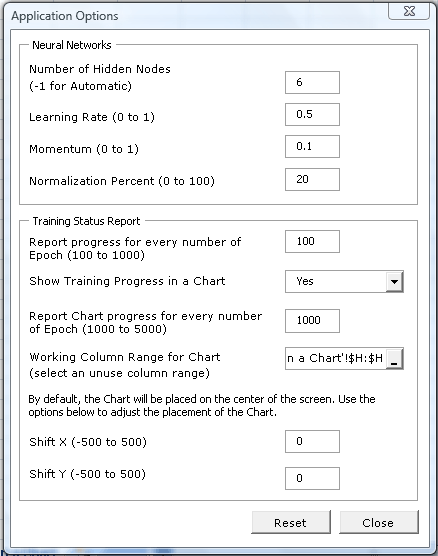


  • Set the "Target Error Rate" to 0.0007. A much smaller value so that the training takes longer.

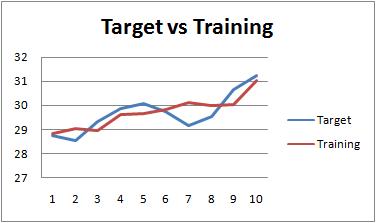
  • Click on the "New Training" button. An Excel Chart will appear to show you the progress of the training.


Tip:

Showing the progress in a Chart gives you the confidence that NeuralCode can learn the big picture from your training data. Once you are confident with NeuralCode, remember that it is faster to train without the Charts.

You can delete the chart anytime, NeuralCode only uses it to display the training progress.

Back to NeuralCode - Neural Networks Trading main page


Copyright (c) 2007-2011, ConnectCode Pte Ltd. All Rights Reserved.


Trademark Acknowledgements

Microsoft and Microsoft Excel are registered trademarks of Microsoft Corporation. Avery is the trademark of Avery Dennison Corporation. All other product names are trademarks, registered trademarks, or service marks of their respective owners