
Integrating your market data with TraderCode
TraderCode provides the flexibility for you to use external market data for analysis, charting and backtesting. You may have obtained your market data by exporting data to a comma-separated values (csv) file in some existing trading tools or you may have purchased an entire collection of historical data from some well-known data vendors. In any of these cases, TraderCode lets you use these data very quickly and easily.Basic Tutorial on using your market data with TraderCode
You can integrate your trading data with TraderCode by using the simple Copy-and-Paste function of Microsoft Excel. There is no additional software user interface or libraries to import for use.The first worksheet you see when you launch the Technical Analysis Expert, Backtesting Expert or Point-and-Figure Charting Expert is the "DownloadedData" worksheet.
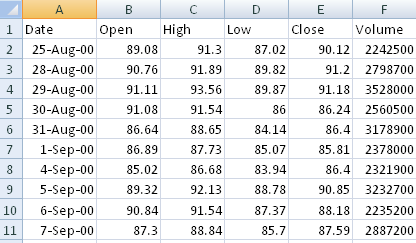
You can copy data from any spreadsheets or csv files to this worksheet for technical analysis. The format of the data is as shown in the diagram above. Once you have copied the data, you can go to the "AnalysisInput" worksheet in the Technical Analysis Expert and click on the "Analyze and Chart" button. This will generate the different technical indicators and technical analysis charts.
Note: For the Backtesting Expert, click on the “Analyze and BackTest” button; for the Point-and-Figure Charting Expert, click on the “Chart” button”.
Many finance websites e.g. Google Finance or Yahoo Finance, also let you download data quickly and easily. Simply follow the instructions in the next few sections to obtain trading data for use in TraderCode.
Downloading market data from Google Finance
This tutorial shows how you can download market data from Google Finance for use in TraderCode technical analysis and backtesting.1. Launch your internet browser and go to https://www.google.com/finance. This is the main index page for Google finance.
2. Enter "Google" in the search box and click on the "Get quotes" button. You will see a webpage with financial information about Google.

3. Click on the "Historical prices" link of the webpage as shown in the diagram below.

4. You will see a webpage of the daily historical prices of Google.
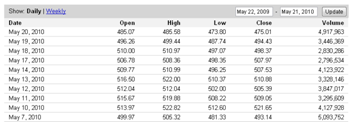
5. Click on the “Download to spreadsheet” link to download the data to a spreadsheet.

6. Open the file using Microsoft Excel and you will see the historical data in a spreadsheet as shown in the diagram below.
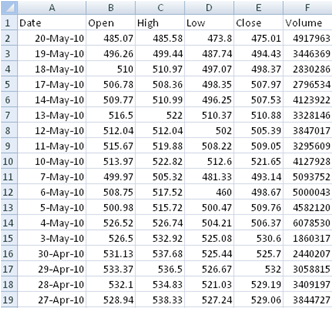
You will need to sort the data by the Date column. This can be achieved by selecting all the cells as shown in the diagram above and clicking on the "Sort" button in Excel. In the popup dialog, select to sort the data by "Date" in the order of "Oldest to Newest".
7. You can now copy and paste the data in TraderCode spreadsheets for Technical Analysis, Strategy Backtesting and Point-and-Figure charting.
Download Data from Yahoo Finance
This tutorial shows how you can download trading data from Yahoo Finance. The data can then be used in TraderCode for Analysis, Backtesting and Point-and-Figure charting.1. Launch your internet browser and go to https://finance.yahoo.com/. This is the main index page for Yahoo finance.

2. Enter "YHOO" in the search box and click on the "Get quotes" button. You will see a webpage with financial information about Yahoo.
3. Click on the "Historical prices" link of the webpage as shown in the diagram below.

4. You will see a webpage of the daily historical prices of Yahoo.

5. Click on the "Download to spreadsheet" link to download the data to a spreadsheet.

6. Open the file using Microsoft Excel and you will see the historical data in a spreadsheet as shown in the diagram below.
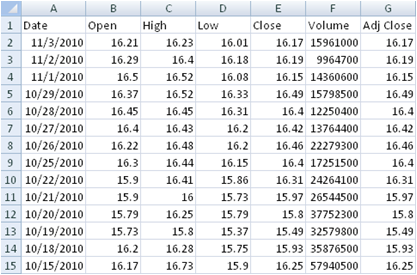
You will need to sort the data by the Date column. This can be achieved by selecting all the cells as shown in the diagram above and clicking on the "Sort" button in Excel. In the popup dialog, select to sort the data by "Date" in the order of "Oldest to Newest".
7. You can now copy and paste the data in TraderCode spreadsheets for Technical Analysis, Strategy Backtesting and Point-and-Figure charting.
Download Data from Forex.com
ConnectCode provides a collection of Microsoft Excel spreadsheets that download both real-time and historical data from https://www.forex.com using Visual Basic for Applications (VBA).You are required to have a demo or live account from https://www.forex.com in order to use these spreadsheets. The source code of the spreadsheets is distributed under the GPL open source license. You can use the spreadsheets for free and you can make the necessary modifications to cater to your needs.
For more information, please refer to:
Automating the download of trading data
Using an Open Source Excel Macro for downloading data from Yahoo Finance
You can easily integrate TraderCode with an Open Source Excel Macro that automatically downloads data from Yahoo Finance (https://finance.yahoo.com). This will improve your productivity as you do not need to download and copy-and-paste the market data manually.The macro is developed as a Visual Basic for Applications (VBA) module and can be imported into Excel in a few simple steps. The macro can download data directly to the "DownloadedData" worksheet.
For more information, please refer to:
Back to TraderCode Technical Indicators and Technical Analysis